


If you are using WordPress, there is a high probability that you are using a theme you downloaded from the Internet. These themes come with their own homepages and layouts for various other sections to be used for your site. Because many WordPress sites operate as blogs, many themes include listings of blogs on the homepage similar to what is shown in Figure 1.
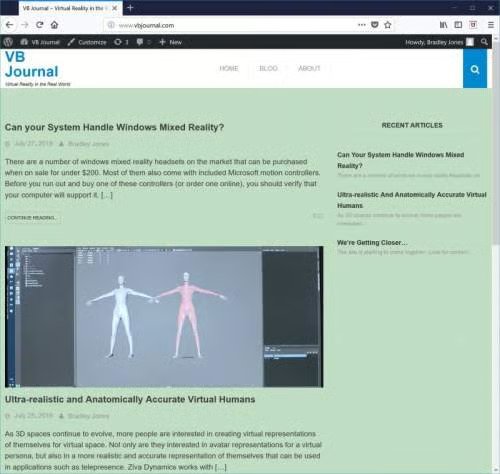
Figure 1: Default home page listing full blog posts in WordPress
The defaulted pages are often not the most desired solution for many sites; Having a page that includes more static information is often desired. Including a unique static page can be done in just a couple of steps!
The first step is to create a new page that will be your home page. This is done in the same way any other page is added: Select Pages in the WordPress menus and then select to “Add New” page. You can add anything that you would like to see displayed onto the new page. As you can see in Figure 2, for my site, I’ve added a “Welcome” message along with links to the newest articles. I’ve named my page “Home”; however, you can use any name you’d like.
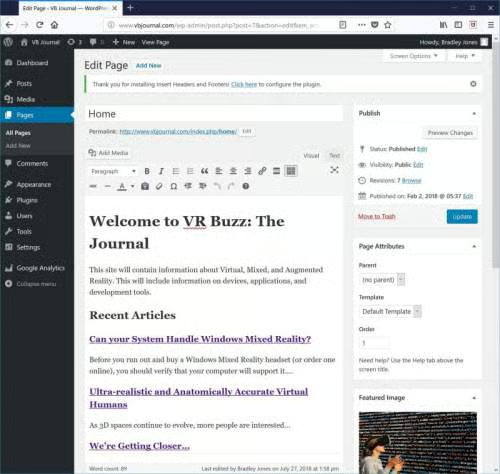
Figure 2: A new page to be used as the Home Page
Because the original homepage in the template I was using was also the default page for listing the blog entries, I now need to also create a new blog listing page. This is simply a matter of creating another new page in WordPress. Create a page and name it Blog. You can save the page without adding any content as shown in Figure 3.
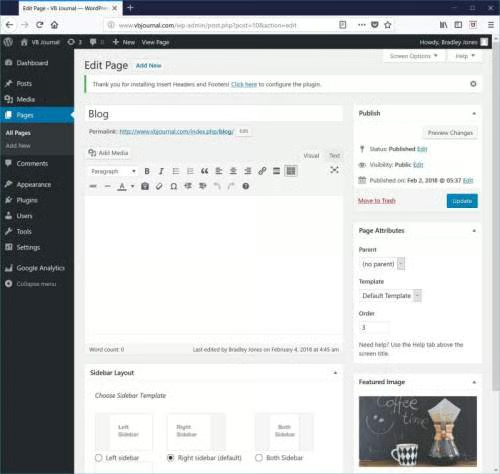
Figure 3: A blank Blog page in WordPress
Once you’ve created your new homepage and blog listing pages, you are ready to connect them to your site. From the WordPress menu, select Reading from the Settings menu. This will present you with the settings similar to what is shown in Figure 4.
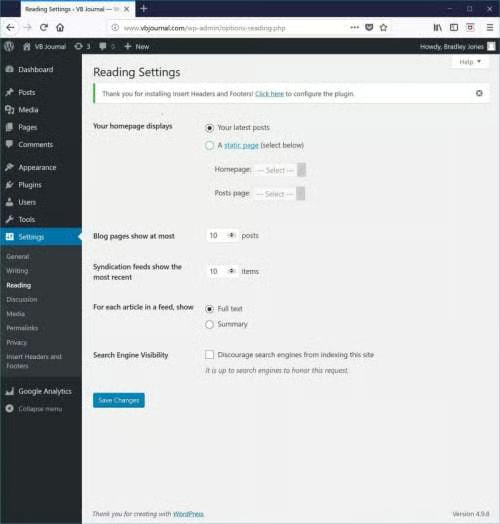
Figure 4: The Settings –> Readings settings in WordPress
You will want to select the option for “A static page”. You’ll then select a new page for your Homepage and your Posts page. This will be the two pages you created earlier. The result should look similar to Figure 5.
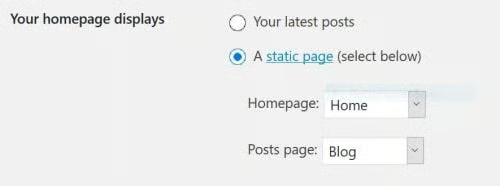
Figure 5: The updated homepage settings
Select the option to save these changes.
Once you save these changes, your homepage will be the new page you created, and your blog posts will be listed on your new blog page, which will no longer be blank if you have blog posts!
