


Naturally, when Adobe releases a tool that purports to create HTML5-based animations, we had to take a look. In this article we’re going to install and try out Adobe Edge, which is currently in “pre-release” form.
Installation of Adobe Edge
Initially, you need to download a 65 MB zip file from Adobe, and extract it to your computer (Windows or Mac). Once you’ve done that, you run a file called “set-up.exe” (yes, they really spelled it that way). Like most Adobe installations, you just follow the on-screen prompts and the product is installed and ready to use. You are able to use the prelease version of Adobe Edge for 134 days.
Here’s what it looks like as you are installing it:
Trying Out Adobe’s Sample Animations
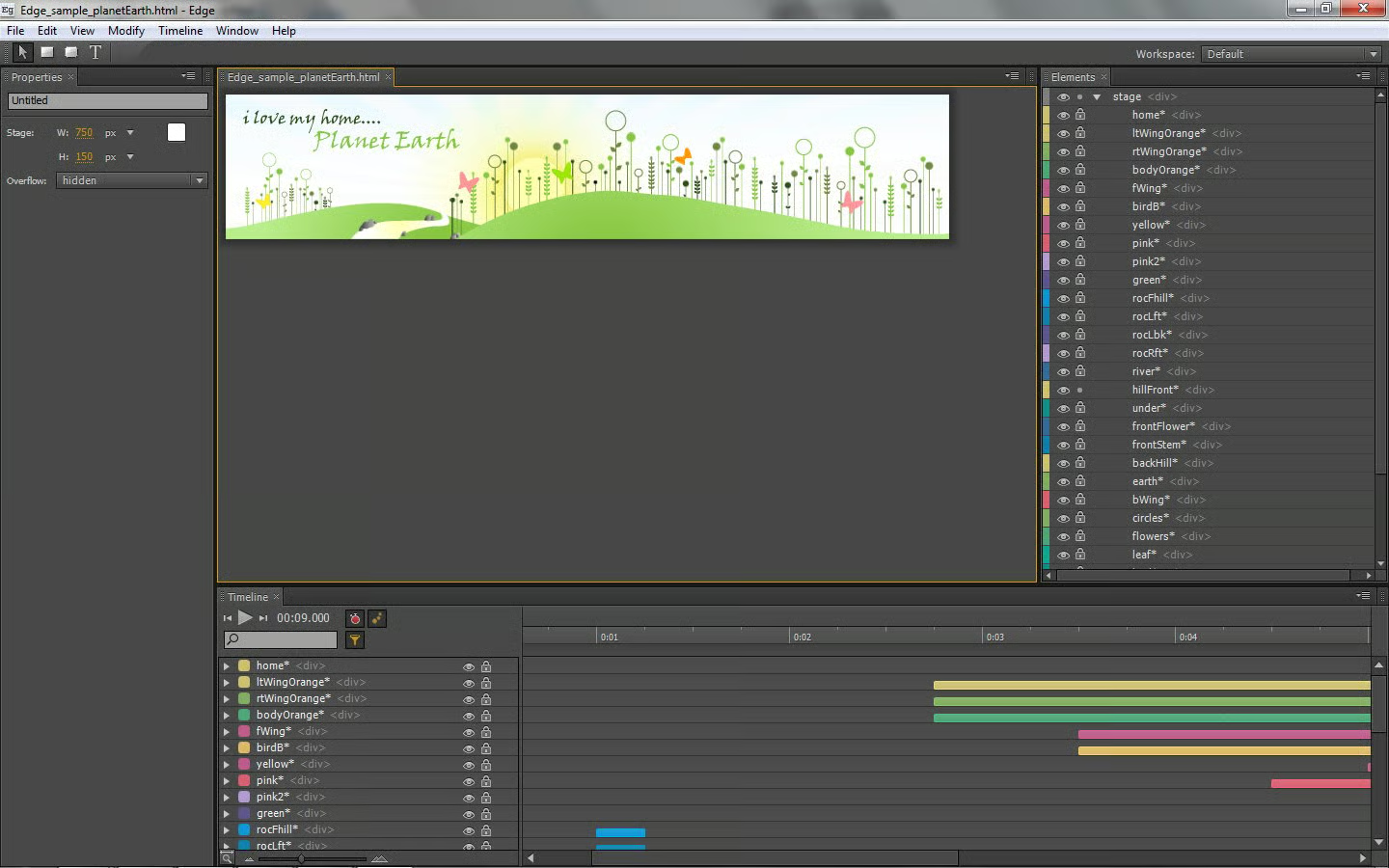
When you download Adobe Edge, you can also download some sample animation files they have put together to get you started. I downloaded the Earth and Solar System animation samples. The samples must be unzipped, at which point you can open them up in Edge, as I’ve done with the Earth animation here:
You can see the animation as it is displayed within the browser preview here:

Adding An Animation To An Existing HTML Page
Okay, my first issue with Adobe Edge has to do not with the software, but rather, how to export and use the completed animation on my site. There is no obvious way to grab the code. By viewing the source code of the browser preview, I am able to see just what is involved (some CSS and JavaScript includes, and a DIV element):
<!DOCTYPE html>
<html>
<head>
	<title>Untitled</title>

<!--Adobe Edge Runtime-->
  <script type="text/javascript" src="edge_includes/jquery-1.4.2.min.js"></script>
  <script type="text/javascript" src="edge_includes/jquery.easing.1.3.js"></script>
  <script type="text/javascript" src="edge_includes/edge.0.1.1.min.js"></script>
  <script type="text/javascript" src="edge_includes/edge.symbol.0.1.1.min.js"></script>
  <script type="text/javascript" charset="utf-8" src="Edge_sample_planetEarth_edge.js"></script>
  <link rel="stylesheet" href="Edge_sample_planetEarth_edge.css"/>
<!--Adobe Edge Runtime End-->

</head><body>
	<div id="stage" class="symbol_stage">
	</div>
</body>
</html>Nothing in the Release Notes about how to actually export completed animations. By going to the Adobe Edge Forums, I was able to find out how to add an animation to Dreamweaver and InDesign (for Dreamweaver, you open your HTML file that was created by Dreamweaver within Edge, and add the animation from within Edge; for InDesign, you need to install the Adobe Digital Publishing Solution (DPS) plugin, and use DPS to add the animation).
I’m sure there has to be an easier way to add an animation to a web page if you aren’t using those Adobe products. I tried opening an HTML file within Edge and adding an animation, but this preview release doesn’t seem to support tabs. As a result, I could only work on one file at a time, and could not copy and paste an animation into another page. So I did it the old school way, and viewed the animation in Internet Explorer 9, and then viewed the source code. I then copied the source code, and pasted into an HTML page. I have to use iframes to show it within the HTMLGoodies content management system, but here’s what it looks like live (assuming you are using a browser that supports this functionality).
Browsers I tested that it worked with include the following:
- Google Chrome 13.0.782.112
- Mozilla Firefox 5.0
- Microsoft Internet Explorer 9.0.8112 (worked well by itself, but not within an iframe–likely due to security settings)
Conclusion
Overall, if you know how to work with animation timelines, once Adobe releases the full version of Adobe Edge, and adds some decent documentation, it will be a valuable tool in the web developer’s toolbox. For now, it’s worth checking out (since it’s free to try the preview release), and can be useful as a tool to try your hand at HTML5-based animations, especially if you’re already using Adobe Dreamweaver or InDesign.
