


A link represents a connection from one web page to another web page. This CSS property can be used for linking styles in different ways. In this article, you will learn how to set different properties of a hyperlink using the CSS property. So, let’s see the best practices for styling links.
The first thing to understand is the concept of link states, different states in which there may be links that can be designed using different pseudo-classes:
- unvisited link: is the default state in which a link is located, more precisely when it is not in any other state. It can be designed in a specific way using the link pseudo class.
- visited: represents a link that has already been accessed, visited, styled using the: visited pseudo class.
- active: represents a link that is activated by clicking on the link, styled using the: active pseudo class.
- hover: represents a link that, once the user hovers over the link, the property is activated, styled using the: hover pseudo class.
- focus: represents a link that has been focused (example: the user moves the action to a page element using the Tab key or programmatically focused using HTMLElement.focus ()), styled using the: focus pseudo class
Here is an example of a simple link:
<!DOCTYPE html>
<html>
<head>
<title>CSS links</title>
<style>
p {
   font-size: 30px;
   text-align: center;
   }
</style>
</head>
<body>
<p><a href="https://www.herbalife.com">Example for a simple link</a></p>
</body>
</html>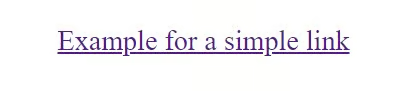
You can see some things as you explore the default styles, namely that links that have not been accessed are blue, links are highlighted, links visited are purple, focused links have a contour around them and the active links are red.
The default styles can be modified or deactivated, using the following CSS properties: mouse pointer style cursor, text color and text outline.
Here is an example using the text-decoration property:
<!DOCTYPE html>
<html>
<head>
<style>
p {
   font-size: 30px;
   text-align: center;
   }

a:link {
  text-decoration: none;
}
a:visited {
  text-decoration: none;
}
a:hover {
  text-decoration: underline;
}
a:active {
  text-decoration: underline;
}
</style>
</head>
<body>
<p><b><a href="default.asp" target="_blank">Here is a link</a></b></p>
</body>
</html>
Here is another example, this time using the background-color property:
<!DOCTYPE html>
<html>
<head>
<style>
p {
   font-size: 30px;
   text-align: center;
   }
a:link {
  background-color: coral;
}
a:visited {
  background-color: cyan;
}
a:hover {
  background-color: DarkMagenta;
}
a:active {
  background-color: DarkSalmon ;
}
</style>
</head>
<body>
<p><b><a href="default.asp" target="_blank">This is a link</a></b></p>
</body>
</html>
Advanced CSS link buttons: to create a link button, use some CSS-style properties, so you can create the box and make it interactive. You will need the color property to set the color of the text representing the link, the background color to add color to the button itself, the text-decoration to remove the underline from the link, the text-align property to set the alignment of your link, the display property to describes how your link and padding property should be displayed and determine how big your button will be.
Here is the example:
<!DOCTYPE html>
<html>
<head>
<style>
a:link, a:visited {
    background-color: DarkSalmon ;
    border: none;
    color: #FFFFFF;
    padding: 25px 52px;
    text-align: center;
    -webkit-transition-duration: 0.4s;
    transition-duration: 0.4s;
    text-decoration: none;
    font-size: 20px;
    text-align: center;
    cursor: pointer;
    display: inline-block;
}
a:hover, a:active {
    background-color: DarkRed ;
}
</style>
</head>
<body>
<body>
	<a href="http://www.tennis.com" target="_blank">BUTTON</a>
</body>
</body>
</html>
All the properties we have used before can be used in other ways too. For example, states such as hover can be used to style many different elements, not just bindings.
Links are often stylized enough to look and behave like buttons in certain situations. A navigation menu is marked as a list containing links, and this can be easily designed to look like a set of control buttons, giving the user access to other parts of the site. See the example below:
<!DOCTYPE html>
<html>
<head>
<style>
body,html {
  margin: 0;
  font-family: sans-serif, arial, helvetica;
}
ul {
  padding: 0;
  width: 100%;
}
li {
  display: inline;
}
a {
  outline: none;
  text-decoration: none;
  display: inline-block;
  width: 19.5%;
  margin-right: 0.625%;
  text-align: center;
  line-height: 3;
  color: white;
}
li:last-child a {
  margin-right: 0;
}
a:link, a:visited, a:focus {
  background: DarkSalmon ;
}
a:hover {
  background: DarkRed ;
}
a:active {
  background: red;
  color: white;
}
</style>
</head>
<body>
<ul>
  <li><a href="#">Tournaments</a></li><li><a href="#">Scores</a></li><li><a href="#">News</a></li><li><a href="#">Videos</a></li><li><a href="#">PLAYERS & RANKINGS</a></li>
</ul>
</body>
</html>
Let’s see what happens in the example below, focusing on the most interesting parts. Therefore, the second rule eliminates padding from element <ul>, once again setting its width for 100% of the outer container, in our <body> case.
<li> Elements are implicitly locked, which means they will be on their own lines. Thus, we will create a horizontal list of links, so that we set in the third rule the property of the line display, which results in the items on the list being on the same line with each other, behaving as some elements arranged inline. The most complicated rule is the number four rule, the one that stylizes the <a> element. So, we start by turning off the decoration and the default text of the text. After we set the display inline; the <a> elements are displayed implicitly inline, not wanting them to fall on their own lines, so we will use inline-block to be able to size them.
Next, we set the display to the inline line – the <a> elements are inline by default and, although we do not want them to spill on their own lines, as they would reach a block value, we want to be able to resize them. Inline-block allows this. For dimensioning, we want to fill the whole width of the element <ul>, leaving a small space between each button. After that, we set the width and the space between each button. The last statements are relatively simple and are meant only for cosmetic purposes. We set the line height to 3 to give the buttons a certain height and at the end we set the text color to white.
Conclusion
I hope this article gives you all the necessary information about links and their customization. Practicing the examples above, you will surely gain the experience needed to create high-level CSS links.
