
The Top Three Most Common WordPress Errors – and How to Fix Them
Overall, WordPress (WP) is a great content publishing system, but it’s not perfect. In my humble opinion, WP’s worst flaw is its error handling. Perhaps it’s because WP is built using PHP, which is an interpreted language. In any event, even the tiniest of errors can result in a white screen – perhaps with a cryptic error message, perhaps not – commonly known by those in the know as the “WordPress White Screen of Death” (WSOD). On high volume sites, this drives both users and the site owner completely batty! As the developer of such sites, it keeps me on edge, as I never know when I’ll be getting panicked calls and/or emails.
And that’s just the worst of the offenders. There are plenty more common WP errors to worry about. In today’s article, I’ll describe a few of these and offer tips on how to combat these unwanted annoyances.
Syntax Errors
I can’t count the number of times that I was coding away in the WP editor, clicked the Update File button, and suddenly found myself staring at the WordPress White Screen of Death (WSOD) with a message such as:
Parse error - syntax error, unexpected $end in /public_html/mysite/wp-content/themes/mytheme/functions.php on line 456Believe it or not, one misplaced comma is all that it takes to bring down your entire WP site, including the editor! The above message indicates a PHP parse error. When that happens, all scripts stop working.
To fix it, you have to FTP to your host to get at the offending file. Once you’ve got it open in an editor, go to the line number given in the error message and look for something amiss. Hopefully it won’t take you too long! Once, you think that you’ve found the culprit, re-upload the file (clobbering the old one), and reload the page. This time, you may see the same message, another one, or, if all goes well, the page that you were expecting.
Whatever you do, never code in production without having your host readily available in your favorite FTP client application.
To minimize the frequency of the WSOD, I recommend that you run all new code through an online PHP validator such as this one. It will help you spot syntax errors before you bring down your entire site. Ignore my advice at your own peril.
Internal Server (500) Errors
Although the HTTP 500 Internal Server Error can occur on any website, it is especially prevalent on WP sites. A 500 error suggests a problem with the website’s server and can have a number of causes, including permission issues, corrupt .htaccess file, an invalid command, exceeding resources, just to name a few.
Take the following actions to remedy the problem:
- The most likely issue is a corrupted .htaccess file, so that should be the first thing you check. Log in to your site root using FTP and rename your .htaccess file to something like .htaccess_old. Try reloading your site to see if this has solved your problem. If it works, navigate to Settings > Permalinks in WP and reset your permalinks. This will generate a new .htaccess file for you.
- Try deactivating all of your Plugins to see if it is a Plugin issue. If you are unable to access your WordPress Administration pages, deactivate your Plugins via FTP by following these instructions.
- Switch the Theme to the default “WordPress Twenty Sixteen Theme” to eliminate any theme-related issues.
- Increase the PHP Memory limit. By default, WordPress will attempt to increase memory allocated to PHP to 40MB (code is at the top of the /wp-includes/default-constants.php file) for a single site and 64MB for a multisite, so the setting in wp-config.php should reflect something higher than 40MB or 64MB depending on your setup.
The following code increases PHP memory to 128MB:
__ATLAS_CODE_BLOCK__1__ - Finally, you can try re-uploading the wp-admin and wp-includes folders from a fresh install of WordPress.
If still no go, take 2 aspirin and call me. Just kidding; I probably wouldn’t be of much help either at that point!
No Database Connection
WP runs over a MySQL backend. WP uses this database to store posts, pages, comments, categories, tags, custom fields, users, and site options. When you first install WordPress, it asks you to provide your Database name, host, username, and password. This information is stored in the configuration file (wp-config.php).
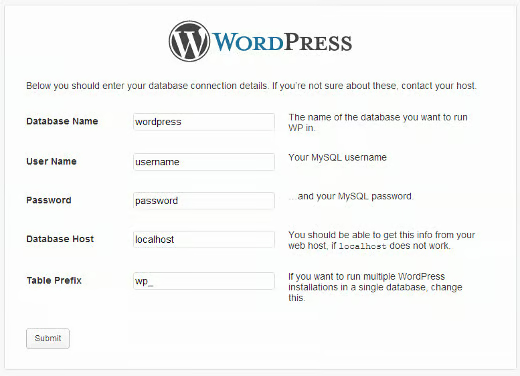
Sometimes, when you enter or modify your database credentials (database host, database username, and database password) incorrectly, it causes the database connection to conk out. It is also possible that your database server simply becomes unresponsive or gets corrupted somehow. However, most of the time it’s incorrect database login credentials at fault.
If you changed your root password or the database user password in the database, then you will need to update the wp-config.php file to match. Try logging into the WP database directly using a tool like phpMyAdmin or MySQL Workbench and make sure that you’ve got the correct credentials.
define('DB_NAME', 'database-name');
define('DB_USER', 'database-username');
define('DB_PASSWORD', 'database-password');
define('DB_HOST', 'localhost');Note that your DB_Host value might not always be localhost. If your site resides on a hosting provider, it may be different.
Some people have had success by replacing localhost with the IP. It is common to see this sort of issue when running WordPress on a local server environment. Add something like the following to wp-config.php:
define('DB_HOST', '127.0.0.1:8889');In the event that you are seeing a different error on the wp-admin (such as “One or more database tables are unavailable. The database may need to be repaired”), then you need to repair your database. To do this, add the following line in your wp-config.php file. Add it just before the “That’s all, stop editing! Happy blogging” line:
define('WP_ALLOW_REPAIR', true);Adding the above statement allows you to access the repair database functionality without logging in, which is good, since you usually can’t login when the database is corrupt.
You can then repair the database from the page at “http://www.yoursite.com/wp-admin/maint/repair.php”.
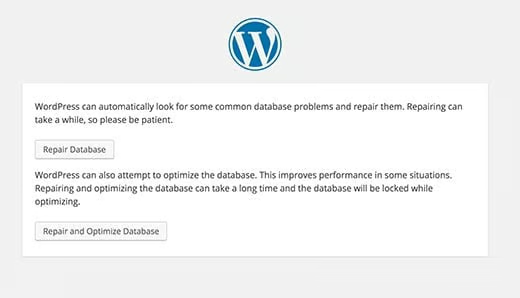
Once you have repaired your database, make sure to remove the ‘WP_ALLOW_REPAIR’ statement from the wp-config.php file.
Conclusion
Today we examined the three top WordPress errors and how to fix them. While these are the most common and severe errors, there are others worth covering. We’ll get to them in due time.
