


Using the alert() JavaScript method, you are able to pop-up a small window with a simple message to a user. The alert() method is often used in many ways such as displaying a simple message in a window when a person enters or leaves a web-page. Figure 1 shows a simple alert box generated with the code in Listing 1.
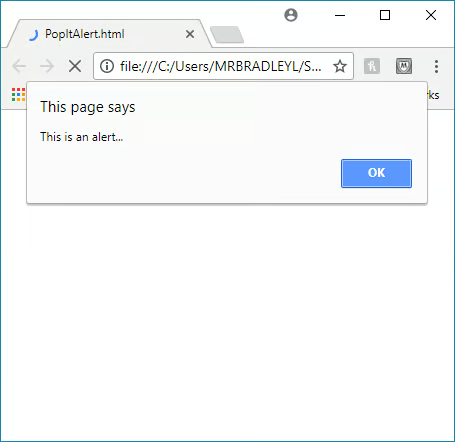
Figure 1: An Alert() box
Listing 1: A simple page with an alert()
<html>
<body onload="alert('This is an alert...')" >
  <h1>I'm Floating Window !</h1>
  <p>This is a full web page!</p>
</body>
</html>
The alert() method creates a pop-up that is generally tied to the underlying window that displayed it. As such, it is not a freely floating window. You must close the alert before you can get back to the underlying window. Additionally, the alert dialog window can’t be moved outside of the browser area of the original window.
The confirm() and prompt() functions are similar to alert() in that they are tied to their underlying windows as well. Neither allow you to get back to the underlying window until you close the new dialog window they create.
So how do you do a pop-up window that floats freely?
Instead of using the alert(), you can call the open() function to display a window that is independent from the window that generates it. The open() function can call another HTML file to open separately. This new window can also be sized via the open() function’s parameters.
Figure 2 shows as simple window that is displayed by using the open() function. The code in the underlying window is shown in Listing 2.
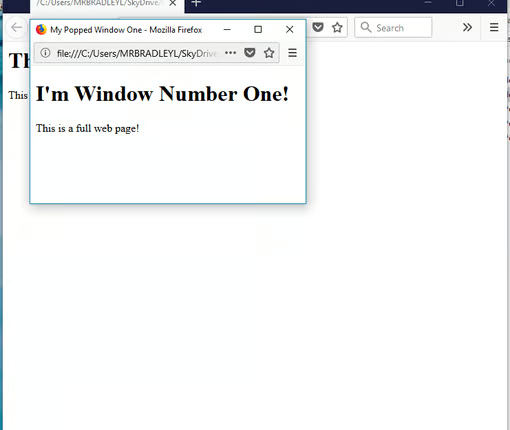
Figure 2: A window displayed using window.open()
Listing 2: Using window.open()
<html>
<body onLoad="window.open("PopIt1.html","","height=200,width=400,scrollbars=no")">
<h1>The Main Window!</h1>
<p>This is the text on the main windows!</p>
</body>
</html>
Listing 2 uses the windows.open() function to display a window based on the code in a file called PopIt1.html file. In this case, the open() function is called in the onLoad method of the body tag. The result is a window that 200 high and 400 wide being created that is independent of the original page.
Note: If you have pop-up blocking turned on, or JavaScript turned off, then the floating window will not be displayed!
The new window is completely independent of the original window. You can move it around the entire screen, you can close it, or you can leave it open while closing the original window. This is a fully functioning, floating window.
Listing 3 shows an example of using the open() function within two other functions to call new floating windows. You can see that one window is called with the page load similarly to what was done in Listing 2. This page, however, also includes two buttons that let you create the two different windows as many times as you want by clicking the buttons.
Listing 3: Creating new floating windows
<html>
<head>
<script language="JavaScript">
<!--
function PopWindowOne()
{
    floatingWindow = window.open("PopIt1.html","","height=200,width=400,scrollbars=no");
}

function PopWindowTwo()
{
    floatingWindow = window.open("PopIt2.html","","height=400,width=300,scrollbars=no");
}
//-->
</script>
</head>

<body onLoad="PopWindowOne()">
<h1>The Main Window!</h1>

<button onclick="PopWindowOne()">create a standalone window....</button>
<button onclick="PopWindowTwo()">create a standalone window TWO....</button>
</body>
</html>
To make things interesting, the PopIt2.html page includes a call to alert() when the page loses focus by including a call to alert on the body’s onblur() method. You can see the code for PopIt2.html in listing 4.
Listing 4: The PopIt2.html code
<html>
<header>
    <title>My Popped Window Two</title>
</header>
<body onblur="alert('Not nice...')" >
  <h1>I'm Floating Window Number Two!</h1>
  <p>This is a full web page!</p>
</body>
</html>
In Conclusion
While alert(), confirm(), and prompt() will display a window, the windows are limited in what they can do, and worse, they are tied to the underlying window instead of being free floating. Using the open() function, you are able to create a stand-alone, free floating window. You must remember that most browsers will create dynamically generated windows as pop-ups. If JavaScript is turned off, or if a pop-up blocker is turned on, then such windows might not get displayed.
