There are a number of JavaScript frameworks that promise to make developing web apps for both browsers and mobile devices easier, faster, and with superior results. Of these, a few have risen to the top of the heap, namely Angular, Ember, and React. Each has their idiosyncrasies that differentiates it from the others. For example, Facebook’s React is the lightest weight of the three, and focuses exclusively on the User Interface (UI).
This tutorial aims to kill two birds with one stone by familiarizing you with both the React JS library and Microsoft’s Visual Studio Code IDE. Originally, I had planned on using the Reactide IDE, but unfortunately, at the time of this writing, it is still in the works. That being said, we’ll create a basic web app using Visual Studio Code (VSC) version 1.24.x. It’s not only free, but boasts React IntelliSense and code navigation out of the box!
Prerequisites
In addition to MS Visual Studio Code, you’ll also need the Node.js JavaScript runtime and npm Node.js package manager. Node.js comes with npm, so installing it covers both tools.
To confirm that you have Node.js and npm correctly installed on your machine, you can type the following statements at the command prompt:
C:\Users\blackjacques>node -- version
v8.10.0

C:\Users\blackjacques>npm -- version
5.6.0
Generating the App
We’ll be using the create-react-app generator for this tutorial. It’s the best way to start building a new React single page application. It sets up your development environment so that you can use the latest JavaScript features, provides a nice developer experience, and optimizes your app for production.
The first step is to install the create-react-app generator, by typing “npm install -g create-react-app” from a terminal or command prompt. As it happens, VSC includes an Integrated Powershell Terminal. It’s like a DOS command prompt, but on steroids!
To open the terminal from within VSC:
- Select View -> Integrated Terminal from the main menu.
- Now type the “npm install -g create-react-app” command at the prompt. You should get a report of packages added:
Windows PowerShell
Copyright (C) Microsoft Corporation. All rights reserved.

PS C:\Users\blackjacques> npm install -g create-react-app
C:\Users\blackjacques\AppData\Roaming\npm\create-react-app -> C:\Users\blackjacques\AppData\Roaming\npm\node_modules\create-react-app\index.js
+ create-react-app@1.5.2
added 67 packages in 9.086s
Now it’s time to create a new React application.
- Type the following statement at the PS comand prompt:
create-react-app my-first-react-app
This will take a bit longer. Again, you’ll get a progress report.
PS C:\Users\blackjacques> create-react-app my-first-react-app

Creating a new React app in C:\Users\blackjacques\my-first-react-app.

Installing packages. This might take a couple of minutes.
Installing react, react-dom, and react-scripts…

> uglifyjs-webpack-plugin@0.4.6 postinstall C:\Users\blackjacques\my-first-react-app\node_modules\uglifyjs-webpack-plugin
> node lib/post_install.js

+ react@16.4.0
+ react-dom@16.4.0
+ react-scripts@1.1.4
added 1320 packages in 102.941s

Success! Created my-first-react-app at C:\Users\blackjacques\my-first-react-app
Inside that directory, you can run several commands:

  npm start
    Starts the development server.

  npm run build
    Bundles the app into static files for production.

  npm test
    Starts the test runner.

  npm run eject
    Removes this tool and copies build dependencies, configuration files
    and scripts into the app directory. If you do this, you can't go back!

We suggest that you begin by typing:

  cd my-first-react-app
  npm start

Happy hacking!
Opening the Project in VSC
With our app built, we can now open it in VSC. To do that:
- Click “Open folder…” in the Welcome screen under Start or select it from the FileMain Menu:
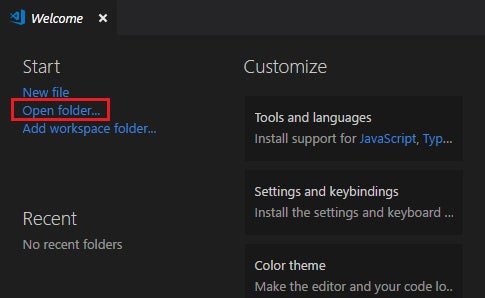
- Use the Select Folder dialog to browse to your “my-first-react-app” folder and click the Select folder button to load the project into the IDE.
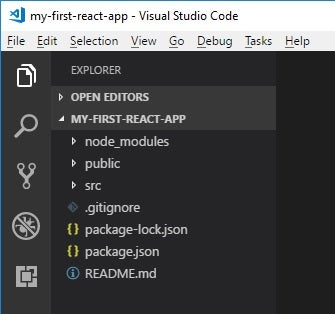
Here is the loaded project structure in VSC:
Taking our App for a Spin
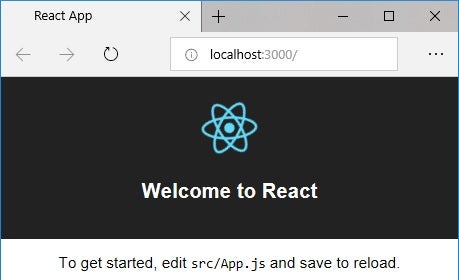
True to its name, the create-react-app generator generates everything your web app needs. In fact, the app is perfectly runnable at this point. To view it, type “npm start” at the command prompt. That will launch the default browser with our app loaded at “http://localhost:3000/”:
Going Forward
As you can see, React is arguably the easiest to work with of the popular frameworks. Now that we’ve got our app in a runnable state, we’ll use React to build an impressive UI in the next installment.