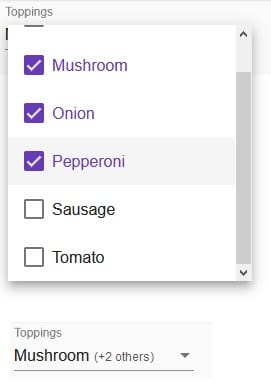
We’ve all seen HTML Selects and Options with custom text and wondered how the developer achieved it. Common upgrades include the inclusion of icons, checkboxes, and additional information that is not part of the Select options. For example, here’s one that lets the user select toppings for their pizza and displays the first ingredient selected, along with the number of additional ones:
Here’s another Select with icons:
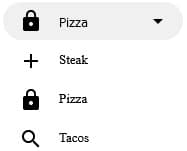
Unlike your run of the mill HTML drop-downs, MatSelect options may contain child elements to customize their appearance. Moreover, Select text is similarly customizable courtesy of the MatSelectTrigger. We’ll use it here today to display a count of themed stock holdings for countries.
The Task Defined
Themed stocks are those that have the potential to benefit from a particular trend such as drones, solar energy, or cloud computing. For our purposes, the specific theme is unimportant. What we want to see is how many stocks, if any, appear on the stock exchange(s) of a particular country. Of course, that’s not hard to do; the catch is that the counts must appear within parentheses in a bold font:
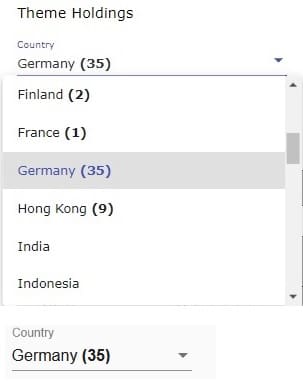
While it’s easy enough to include a SPAN within a mat-option with custom classes for styling, the same cannot be said of the selected value. It can be any data type, but there is no way to style part of the value, at least, not without a MatSelectTrigger.
About the MatSelectTrigger Directive
The MatSelectTrigger directive, who’s selector is “mat-select-trigger”, allows us to customize the trigger that is displayed when the select has a value. The trigger can be the Select itself, or another control, such a button, or any interactive page element really.
Let’s take a look at the HTML markup for the country drop-down and see where the mat-select-trigger fits in:
<mat-form-field class="market-country-select">
  <mat-label class="market-label">Country</mat-label>
  <mat-select [value]="currentMarket.code"
      (selectionChange)="onMarketChange($event)">
    <mat-select-trigger>
      {{currentMarket.name}}
      <span class="bold">{{currentMarket?.count | parenthesize}}</span>
    </mat-select-trigger>
    <mat-option *ngFor="let market of markets" [value]="market.code">
      {{market.name}} <span class="bold">{{market.count | parenthesize}}</span>
    </mat-option>
  </mat-select>
</mat-form-field>
As part of the Select, the mat-select-trigger element is the first child of the mat-select element, before the options. That way, it will override the default value, which is the current country (market) code, i.e. “US”, “CA”, etc.
The next few sections cover each of the variables above, as well as the parenthesize pipe.
The markets and currentMarket Variables
In the application on which this tutorial is based, markets are fetched asynchronously via an API. An interesting side effect is that countries are populated in the drop-down almost immediately while instrument counts appear as they become available. Here, for the sake of simplicity, Select data are included in the component’s .ts file as a read-only array of objects. These are comprised of the market name, code, and an optional count. (I also omitted some from the list for brevity):
public readonly markets = [
{
"name": "Australia",
"code": "AU"
},
{
"name": "Bangladesh",
"code": "BD"
},
{
"name": "Belgium",
"code": "BE",
"count": 5
},
{
"name": "Canada",
"code": "CA",
"count": 1
},
];
Note that there are no zero counts so that you’ll never see a “(0)” in the list.
The current drop-down selection is stored in the currentMarket variable. It’s set both at declaration time and whenever a new item is selected from the drop-down. The onMarketChange() function is bound to the selectionChange event. The latter passes the code value from drop-down to out handler function. There, the onMarketChange() function looks up the market country using the Array find() method:
public onMarketChange(event: MatSelectChange) {
  this.currentMarket =
    this.markets.find(market => market.code === event.value);
}
The Parenthesize Pipe
Rather than adding an If/Else logic in the template, I chose to use a pipe to enclose the counts within parentheses. Inside the transform() method, we can check for a null value to either return an empty string or formatted count, when there is one:
import { Pipe, PipeTransform } from '@angular/core';

@Pipe({
  name: 'parenthesize'
})
export class ParenthesizePipe implements PipeTransform {

  transform(value: string): string {
    return value == null ? '' : '(' + value + ')';
  }
}
Pipes are the recommended way to format text in Angular for good reason: they help keep your templates clean.
The Demo
For a tutorial such as this, you really need a working demo that contains all of the code in one place. As it happens, I’ve got one right here:
Conclusion
In Angular applications, the MatSelectTrigger makes it possible to add stylized text, icons, and even other components to your MatSelects. Use it judiciously to give your users a great experience!